

Track token and storage usage
Training models and using the AI tools spend the tokens of your plan, and your images and models take storage. In this guide you see how much the project has used this period, which services spent it, and how much a training will cost before you launch it.
What you will learn
- Where the tokens and the storage of the project are counted
- Which service spent the tokens
- How to know what a training will cost before launching it
1. Find the usage of the project
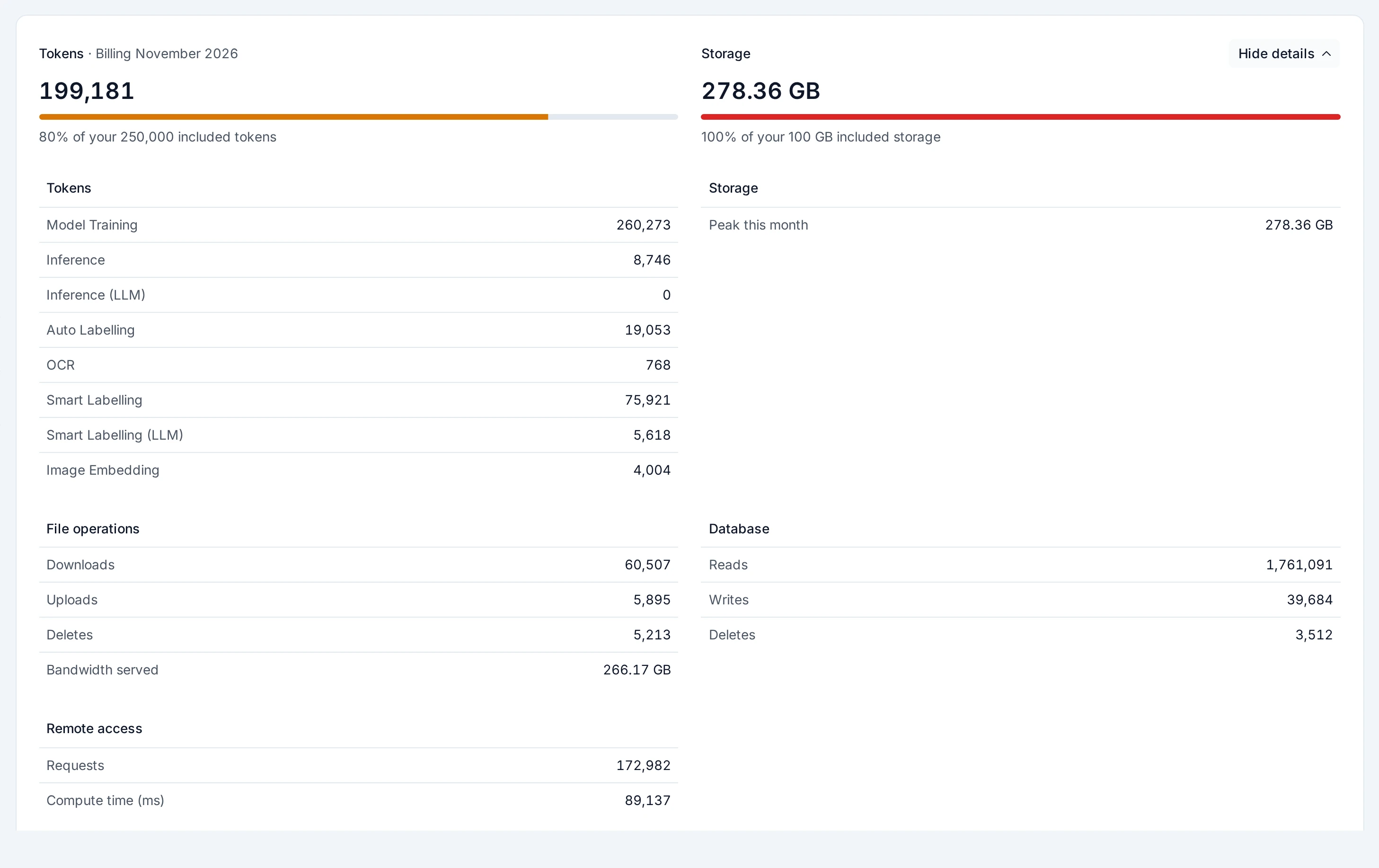
Open the dashboard. Its first card shows:
- «Tokens». How many the project has spent in the current billing period, and the share of the tokens your plan includes. The bar turns amber past 60 % and red past 85 %.
- «Storage». The space your images, annotations and models take, and the share of the storage your plan includes.
A plan without a limit shows «Unlimited plan» or «Custom plan» instead of a share.

2. See which service spent the tokens
Click «Show details». «Tokens» splits them by service: «Model Training», «Inference», «Auto Labelling», «OCR», «Smart Labelling» and «Image Embedding» (what the auto classifier uses), plus the rows marked «LLM» for the same services when they call an external language model. «Storage» gives the peak of the month.
The other tables count the rest of the project's activity: files downloaded, uploaded and deleted and the bandwidth served, reads and writes in the database, and the requests that reach your controllers from the platform. When the platform knows them, a line at the bottom gives the date the tokens are reset and when the storage was last measured.
3. Open the dataset you want to train
Each training tells you its cost before you launch it. Open the dataset you want to train, here from the dashboard's table.
4. Start a new training
Open the «Models» tab, click «Train a new model» and choose «Production training».
5. Name the model
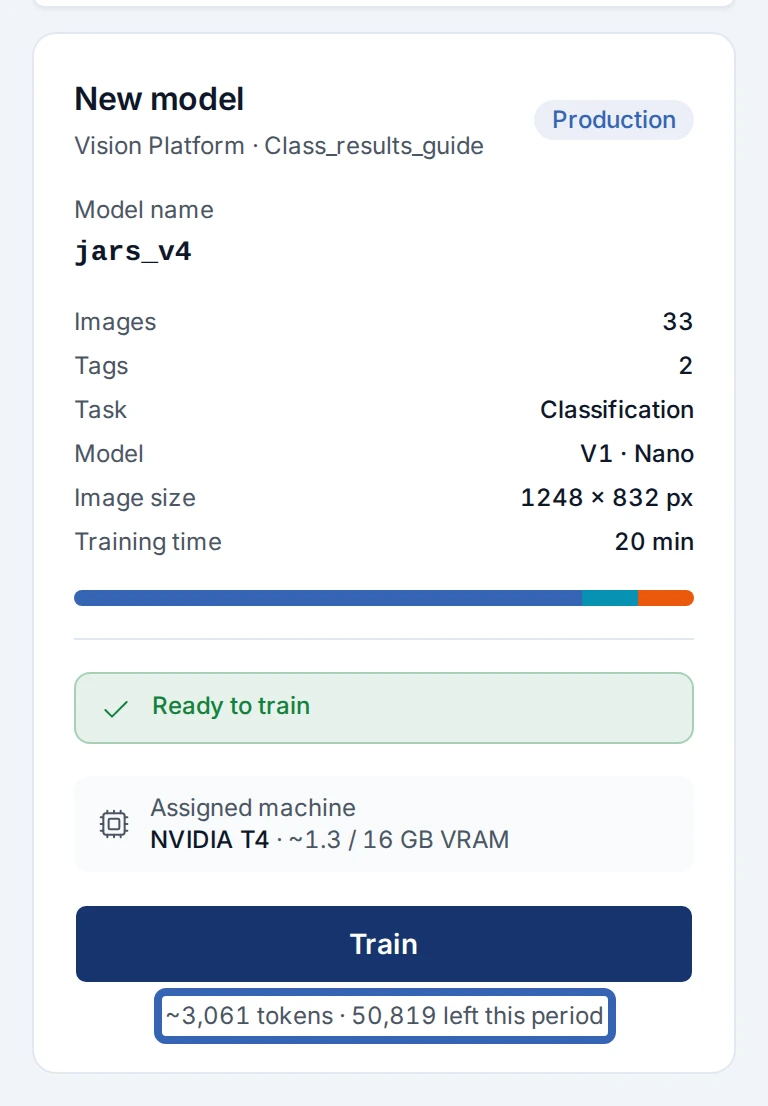
Give the model a name and choose its images, tags, split and training settings as you usually do (see Check that a dataset is ready to train). The summary on the right follows every choice.
6. Read the estimate
Under «Train», the summary shows about how many tokens the training will take with the settings you chose, and how many the project has left this period. The estimate changes as you change the settings: a larger model, larger images or a longer training cost more.
If the training needs more tokens than are left, the line turns red, says «Not enough tokens» with both figures, and «Train» stays disabled. The tokens of a training are reserved when it starts.
7. Leave without training
Click «All models» to go back without training. Nothing is spent until you click «Train».
When the tokens run out
The AI tools check the project's balance each time they start. With no tokens left in the period, Smart Labeling, Auto Labeling, the inference tool, the auto classifier and OCR stop with the message «This project's usage allowance for the current period is exhausted.», and trainings cannot start. Labeling by hand, the datasets and the models that already run on your controllers keep working. The tokens come back when the period resets; ask Rosepetal if you need more before that.
Next steps
- Choose the fastest way to label to see what each AI tool spends
- An AI tool does not start when a tool stops with a message
Recorded on Rosepetal release 1.8.15.